


How to Check Files Sent, Account Settings and Add Backgrounds
45 views · updated 12 hours ago
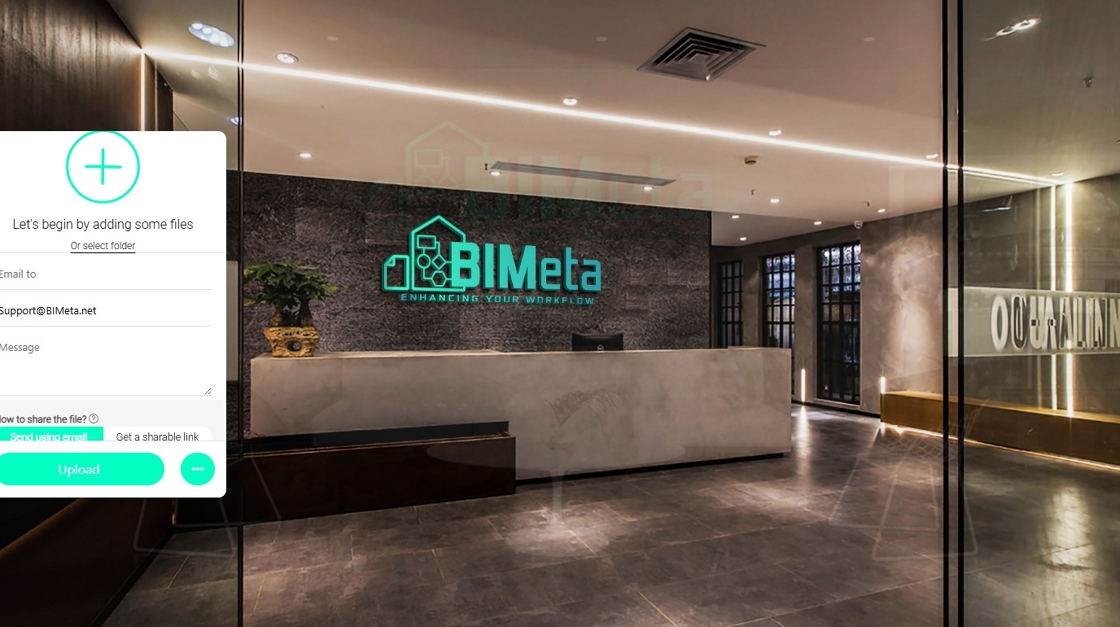
1. Navigate to https://transfer.bimeta.net/home
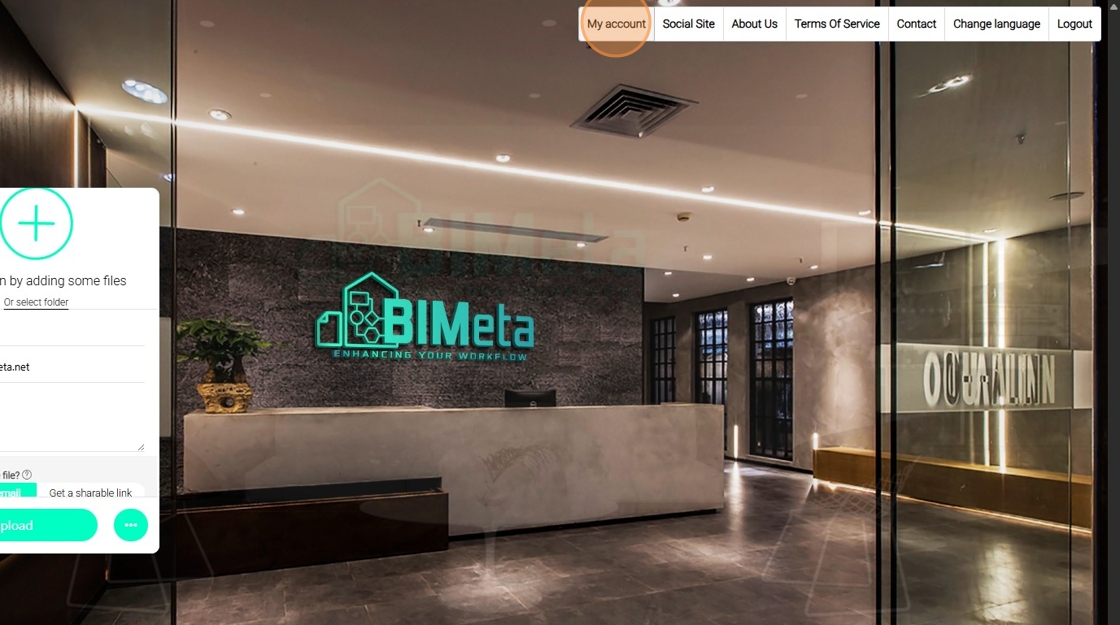
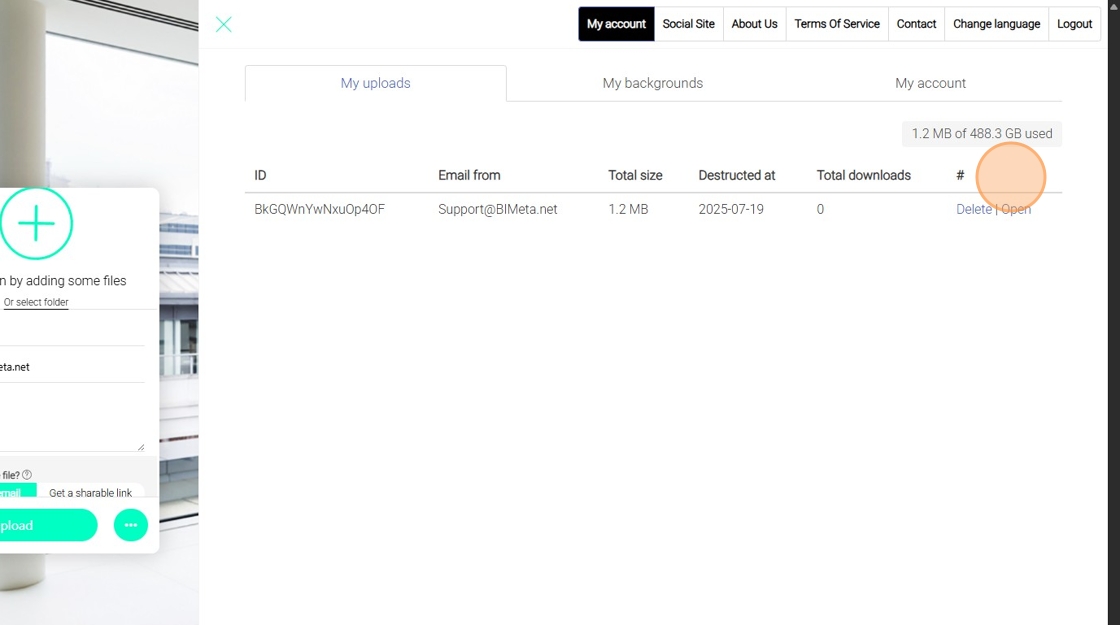
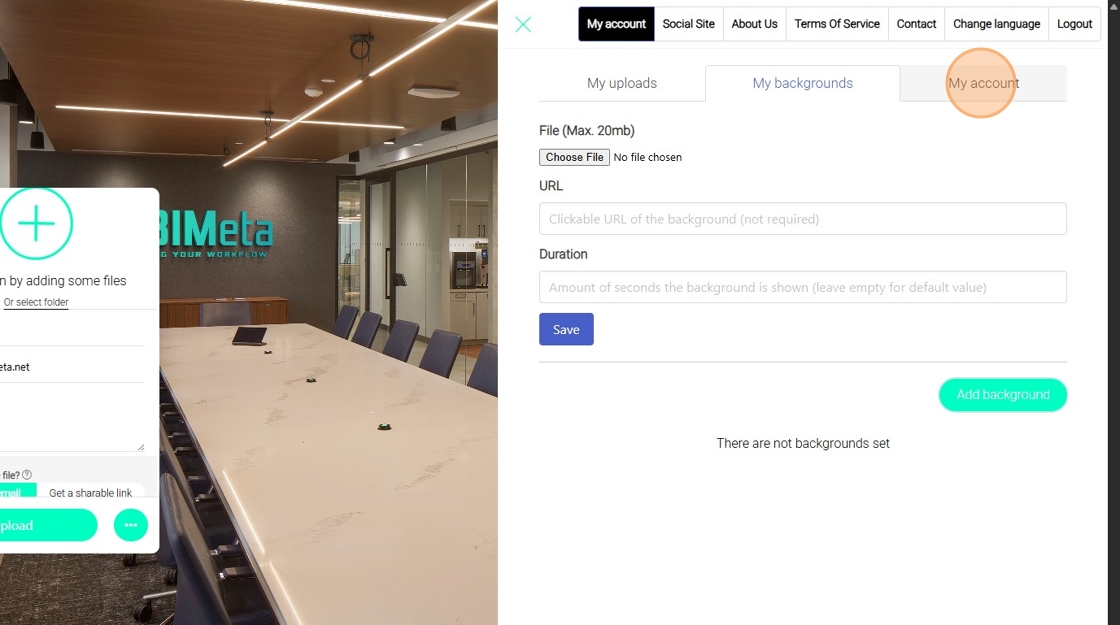
2. If you like to check all the files that you've already uploaded, you can click on My Account.
3. My uploads tab.
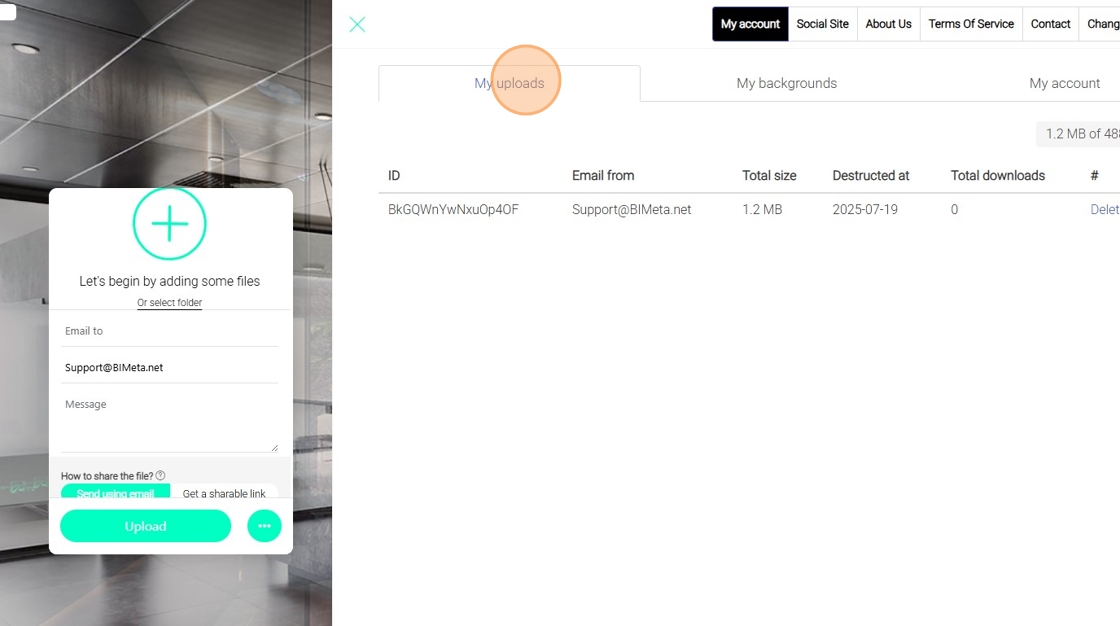
4. And you will see all the files currently uploaded. Your amount of storage remaining and even options to delete or download the file directly will be shown.
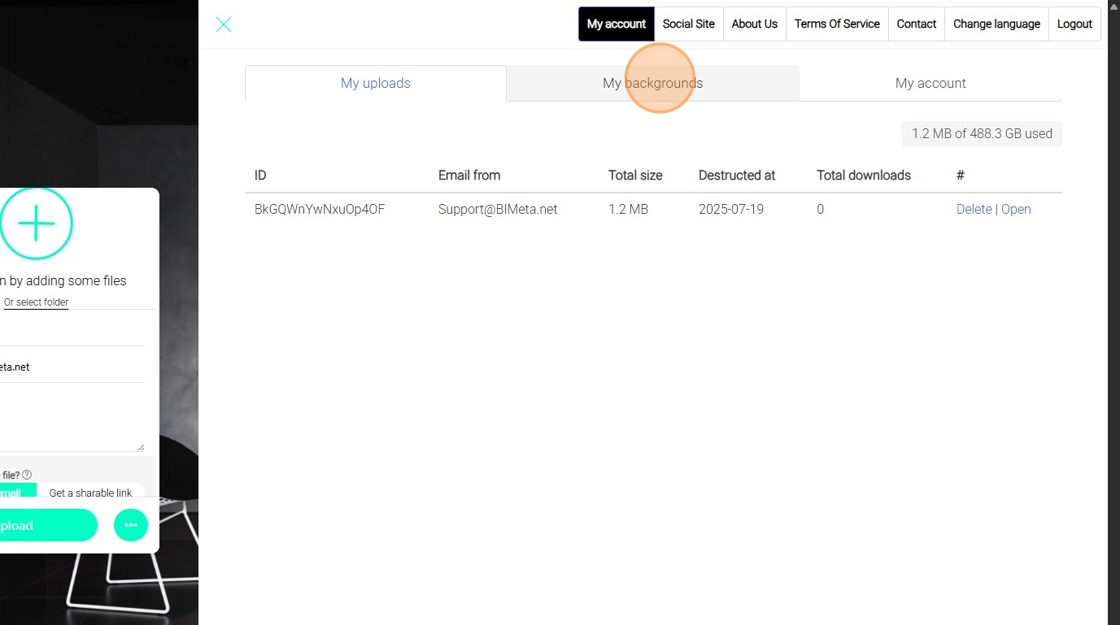
5. You can also click on my backgrounds in the event you want to have custom backgrounds (Applicable plans pending).
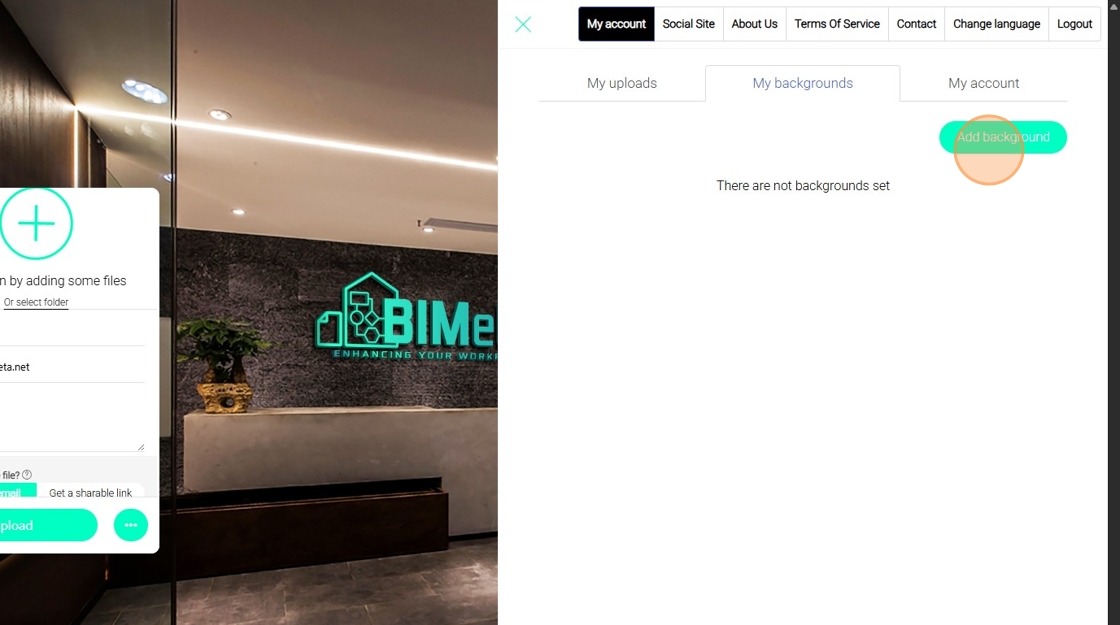
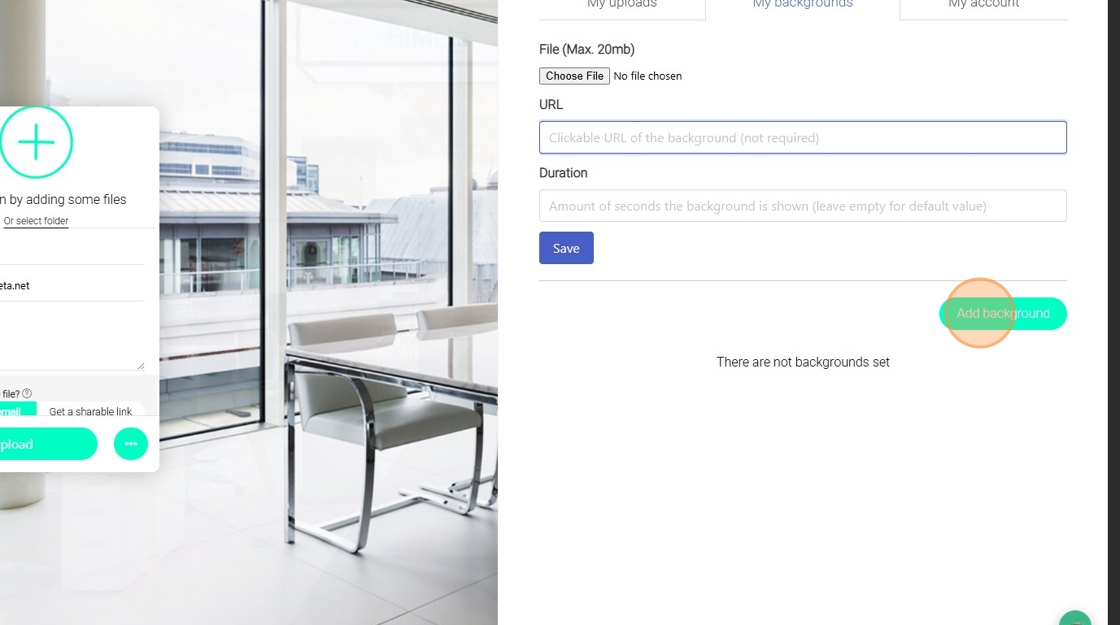
6. To do so, you can click on Add Background
7. Enter in the URL, Duration and any additional information.
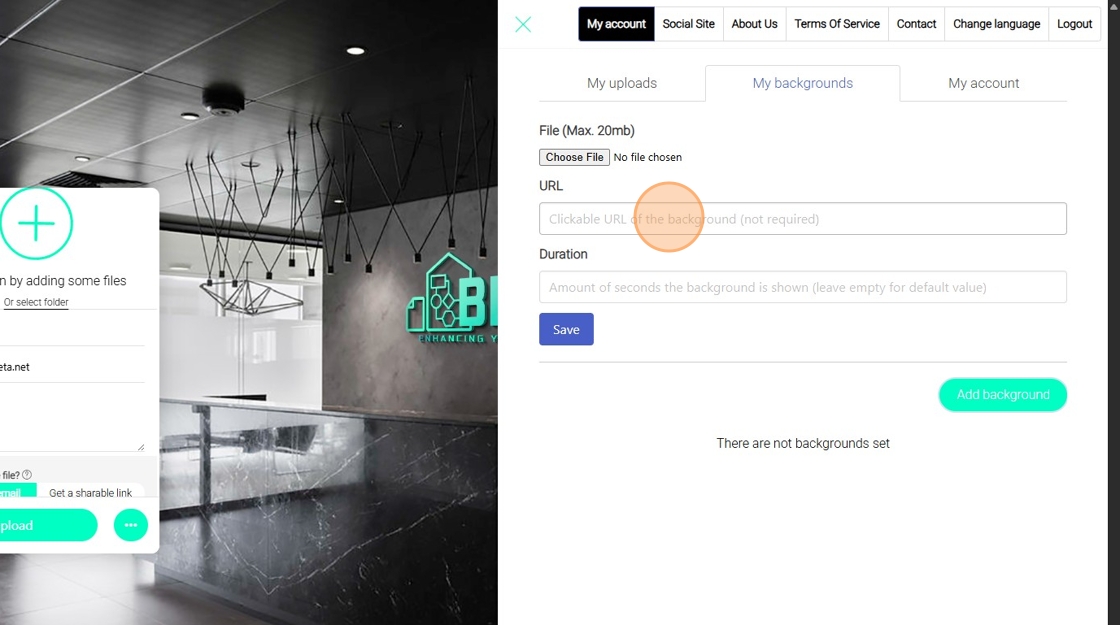
8. Finally, click on Add Background.
9. You can also see your account information under my account.
Was this article helpful?
Share